Archive for the ‘Misc’ Category

ECO Variables, Part 1

If you’ve done any Delphi or C#Builder database programming, think about the SQL statements you’ve used. Have you always known all the SQL you want to use at design time? I’m guessing the answer is no. You quite often know most of the statement, but maybe at runtime you have to substitute in some parameters for your Where clause, for example.

Well, it’s the same thing with OCL. So far we’ve been acting like we can hope to know all the OCL we ever intend to use at design time. Far more common is that you want the same ability to use Parameters in your OCL, just as you do with SQL. However, in ECO they are called Variables, rather than Parameters, but it’s the same concept. They allow us to create OCL that dynamically responds to changes at runtime.

Let me give you an example. Say we want a search screen, like this:
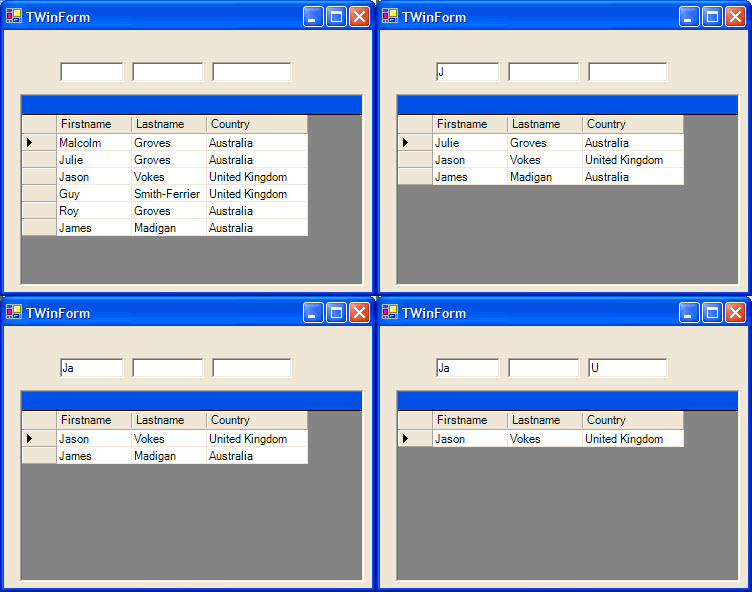
Here I have a grid of Person objects, and some TextBoxes above each field. As I type into one or more of the TextBoxes, the grid only displays the objects that match. How to achieve this?

Well, with static OCL, one way of achieving the end result would be with OCL like this:

Person.allInstances->select( Firstname.regExpMatch(“Ja”) and
Lastname.regExpMatch(“”) and
Country.regExpMatch(“U”))

Note that I’m using the select operator, which returns a collection of Person objects that match the Boolean expression inside the brackets. In this case, I’m doing Regular Expression matching  on each of the fields in order to return the Boolean expression expected by the select function.

Well, this will work, but really we want to be able to substitute in the values to match against at runtime. You could build up this string dynamically I guess, then shove it into the ExpressionHandle, but another way is to use Variables. Let’s look at how you do it.

Apart from the DataGrid and TextBoxes above, you’ll have a ReferenceHandle pointing at your ECOSpace, and an ExpressionHandle connected up to the ReferenceHandle. The DataGrid is connected to your ExpressionHandle. If you’ve worked your way through the tutorials, all of that should not be terribly difficult. Don’t worry about what OCL to put in the ExpressionHandle just yet.

What we need to do is to take the text entered into the TextBoxes and somehow get it into some OCL. We’ll start with just searching on the Firstname attribute, then look at what you’d do to search on all three.

Drop down a component called a VariableHandle and name it vhFirstname. The VariableHandle is responsible to holding the value of a Variable we wish to use in our OCL. A VariableHandle is a bit like a ReferenceHandle, in that needs you to give it a reference to your EcoSpace. For the ReferenceHandle, the File | New | Other | ECO Winforms App wizard did this automatically, but for the VariableHandle, you’ll have to do it yourself.

Two steps are required. Dropdown the VariableHandle’s ECOSpaceType property and select the type of the ECOSpace you are using. Then, have a look in the get_EcoSpace method of our form, and add the line in bold below. Note the Wizard has inserted the equivalent line for the ReferenceHandle (named rhRoot) just above it.

function TWinForm.get_EcoSpace: TECOSimpleSearchEcoSpace;
begin
  if not Assigned(fEcoSpace) then
  begin
    fEcoSpace := TECOSimpleSearchEcoSpace.Create;
    rhRoot.EcoSpace := fEcoSpace;
    vhFirstname.EcoSpace := fEcoSpace;  // insert this line
  end;
  result := fEcoSpace;
end;

We also need to specify the type of this Variable. In our case, it’s a string, but it could be a number, a date or time value, etc. Unlike SQL Parameters, it could be even more than this. Our variable could be a collection of strings, dates, etc, an object, or even a collection of objects! Think for awhile about the flexibility that would provide. (For those who don’t want to think about it, don’t worry, I’ll cover it in the next article)

So, to specify the type of our Variable, we use the VariableHandle’s StaticValueTypeName property. Click on the Ellipsis button for this property and you should see the Type name Selector dialog shown below, which allows you to select the simple type or class, or collection of either, that you want this VariableHandle to hold. In our case, select System.String.
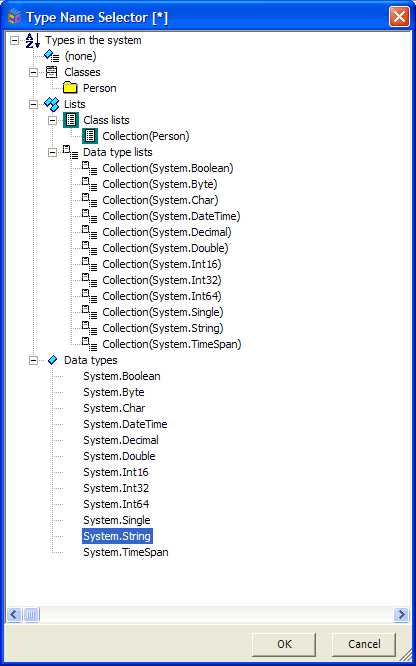
OK, so we have a VariableHandle to hold the value entered into the TextBox. How do we get the value in there? Go to the TextBox component, and put the following code into its TextChanged event:

vhFirstname.Element.AsObject := txtFirstname.Text;

Now, whenever the user changes the text in the TextBox, our VariableHandle component will be updated with the new value. You can replicate this for the other attributes we want to search on (ie. Drop down two more VariableHandles, set their ECOSpaceType and StaticValueTypeName properties, add the relevant code to the get_ECOSpace method, and set up TextChanged events on the relevant TextBoxes so that the variableHandles get updated as the user changes the search text)

That’s great, but we still have no connection between the VariableHandles and the OCL in our ExpressionHandle. So, to hook them up, we need to drop down an OCLVariables component. This component is responsible for holding a collection of variables used in OCL, and the relevant VariableHandles from which their values should be retrieved. Select the OCLVariable component, and bring up the property editor for the OclVariablesCollection property. Add three members to the collection, and for each one, set the ElementHandle and VariableHandle properties. In the screenshot below, you can see how I’ve set the first one.
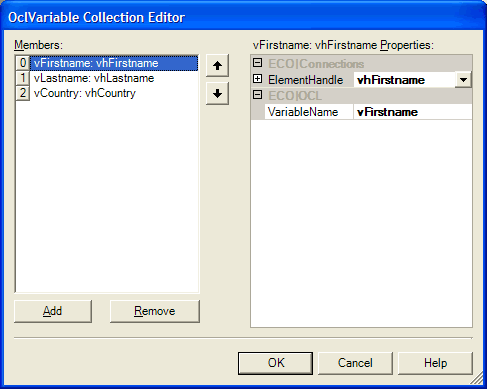
What this screenshot shows is I’ve created a connection between the vhFirstname VariableHandle component and a Variable called vFirstname. I’ve done the same for LastName and Country.

The last piece is to connect the ExpressionHandle that is connected to my DataGrid to my OCLVariables component, using the ExpressionHandle’s Variables property. Then, enter the following OCL into your ExpressionHandle:

Person.allInstances->select( Firstname.regExpMatch(vFirstname) and
Lastname.regExpMatch(vLastname) and
Country.regExpMatch(vCountry))

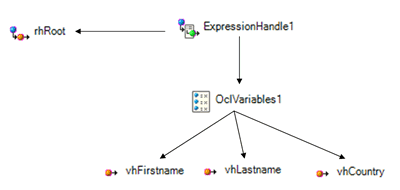
And we’re done. In concept, what happens when the OCL is evaluated, is that the OCL Parser will come across vFirstname, and now knowing what that is, will go out to the ExpressionHandle and request the value. It will, using its Variables property, look in the OCLVariables component and see that the value of vFirstname needs to come from the VariableHandle called vhFirstname. This value will be retrieved, and will either be empty or some string value that was assigned when the user typed into the TextBox. This value will be substituted into the OCL. The same happens for the other two variables and we’re away. The image below hopefully clarifies the relationships between the non-visual controls:
Now a few things to realize. In this case we’re using variables in the regExpMatch OCL function, but we can use variables in many different OCL expressions. Also, as I mentioned before, our Variable could contain more than a simple data type like a string, maybe a collection or an object (or a collection of objects), and provided that type was valid where you were placing your variable in your OCL, that’s fine. As I mentioned earlier, in the second part of this article I’ll do another example using a collection of objects as a variable, however the steps involved are basically the same, so you can porbably figure it out from here.


Technorati Tags: ,,

Ping

You’d be forgiven for wondering if I was still alive, but life has kinda gotten in the way of blogging over the last few weeks.

First, my wife and I escaped the winter in Sydney for a 2 week surfing holiday in Bali. Then I returned to work right at the end of quarter, so it’s been a little hectic.

That said, I have a couple of articles on Variables that are moving towards completion, and also one on Constraints that is less far along. If I can get past Wednesday I’ll get stuck in and finish them off.

NewsGator Defaults

This post made me smile. Being the first of the month, I guess a lot of ISP’s are sending out bandwidth usage emails. I got one this morning telling me I’d exceeded my allowance in May. I guess that’s the downside to Anders and Danny linking to you 🙂

That said, after Chee Wee’s post, I checked my Newsgator install, and noted it was set to check feeds every 60 minutes! Does anyone except Scoble post this frequently, and even if they do, do I care? So, it’s now set to 1440 minutes. I only really get a chance to read these once a day at most anyway.

Evaluate OCL In Code

A quick one for today.

Just had a question from someone on how to evaluate OCL from code. Assuming you have our Person class from the previous examples, place the following code in a button’s click event:

procedure TWinForm.Button1_Click(sender: System.Object; e: System.EventArgs);
var
  OCLResult : IElement;
  ObjList : IObjectList;
  i : Integer;
begin
  OCLResult := ECOSpace.OclService.EvaluateAndSubscribe(nil, ‘Person.AllInstances‘, 
nil, nil);
  if OCLResult is IObjectList then
  begin
    ObjList := IObjectList(OCLResult);

    for i := 0 to ObjList.Count – 1 do
    begin
      MessageBox.Show(Person(ObjList.Item[i].AsObject).Firstname);
    end;
  end;
end;

Here, I’m executing some simple OCL (Person.AllInstances) and then iterating through the resulting collection. The Item property of IObjectList returns an IObject. You can then reference its AsObject method to get back a TObject, which you can cast as your Person and away you go.

Once you have your Person, dealing with any attributes or associations that it has will be much easier, as they will be correctly typed. It’s just "getting inside" our object model where we need to cast all over the shop.

Obviously, if your OCL doesn’t return a collection, then you’d deal differently, but the above code should get you started.

Test Lists in TDD

I was flicking through Test-Driven Development in Microsoft .NET in Borders yesterday.

In it, one of the authors suggests you make a Test List when creating your test class. A Test List, cunningly named as it is, is a list of tests you think you might need for the particular class you are testing. The idea being that not only is it a place to capture all the initial thoughts you had about potential tests you should perform, and the others you think of while you are working, but they also went on to outline a couple of different strategies to choose which tests to write first, and how your choices may affect the design of your class.

Seems like a good idea to me: simple, useful, obvious, but in spite of the fact that I’ve been using DUnit and JUnit for quite a few years, and more recently NUnit, it’s not something that I’ve ever formally done. I usually just keep them in my head (invariably forgetting a few) or scrawl them down randomly on a bit of paper and immediately lose them. I’ve had the embarrasing situation a couple of times, where upon tracking down a bug, I’ve said to myself "But I’m sure I wrote a test for that" only to find that I meant to, but…

So, mark up one habit I’m going to try and get into. However it seems that Delphi and C#Builder can help me out here. I’ve already got the following code added to a Code Template:

{$REGION ‘|’}

{$ENDREGION}

so that I can add collapsible code sections with a simple Ctrl-J. So, from now on I’m going to try and get in the habit of putting one of these up somewhere near the declaration of my test classes, and within it use the To-Do List features of Delphi and C#Builder to embed my Test List into my code. I then get a nice, non-distracting collapsed section like this:

but which when needed, expands out to this:

but more importantly, I can access via the To-Do List viewer:

So at the very least, I can now prove I really did mean to add that test after I spend a bunch of time tracking down a bug 🙂

Optimistic Locking in ECO

One of the ECO Tutorials up on the Borland website provides a good introduction to ECO and databases. But I’ve had a couple of different people ask me about how to deal with locking. I’m assuming you’ve read that tutorial before reading the rest of this article. Also, I’m assuming that you’re actually using a PersistenceMapper component that persists to a relational database. If you’re using the PersistenceMapperXML component then the rest of this article doesn’t apply to you. Sorry.

Here’s the problem: Using my ECO application, I load a particular Person object from the database and start editing values. Meanwhile, Damien who’s also running the same application, loads up the same Person object. Given that I have not yet persisted my changes to the database, when Damien loads his instance, he gets the data from the database. He then changes the Firstname property. I persist my changes to the database, and all is fine. However, at some point Damien is going to try and persist his changes to the database. Should his changes overwrite mine? Should his attempt to persist the changes fail? What if I didn’t change the Firstname attribute? Should it still fail?

What happens when he does try and persist his changes depends on how you, the developer of this app, have configured optimistic locking.

First, let’s look at where you setup optimistic locking, then we’ll look at what the different options mean. Firstly, you need to turn optimistic locking on. Bring up your ECOSpace, click on an empty area of the designer so that the Object Inspector shows the properties of the ECOSpace. In the ECO | Persistence section, you should see a boolean property called OptimisticLocking. Set this to True.

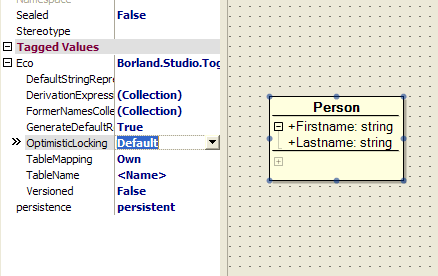
But that’s not all. You need to specify the type of optimistic locking you want to occur for each class in your system. Bring up one of your class diagrams, select a class (make sure it’s the class you have selected, and not one of its attributes or methods) and look in the Object Inspector. Once you’ve expanded the Eco sub-property, you should see a property called OptimisticLocking. The default value of this is, funnily enough, Default, but you can also choose Off, ModifiedMembers, AllMembers or Timestamp. In the rest of this article we’ll be looking at what happens when Damien tries to persist his changes to the Person object, depending on which of these values you’ve selected.

OptimisticLocking set to Off

Setting OptimisticLocking to Off on your class means that no checks are performed before this object is persisted. So, when Damien persists his changes, the following SQL is executed:

update Person
set Firstname = ‘Barney’
where BOLD_ID = 3

Not surprisingly, this will overwrite any changes I may have made to the Firstname attribute for this Person. Maybe that’s what you want? Certainly it will execute faster than some of the other setting I’ll mention shortly 🙂

OptimisticLocking set to Default

Default basically means that the OptimisticLocking behaviour is determined by this class’ ancestor. So, if Person descended from some other class, say a Contact class, then how Damien’s Person class behaved in this situation depends on the value of Contact’s OptimisticLocking property.

OptimisticLocking set to ModifiedMembers

As the name might suggest, this value will mean that before ECO persists the Person object, it will check to see if any of the attributes that have been changed on the class, have also been changed in the database. What this means, in the case of our Person object where Damien edited the Firstname property, is that the following SQL will be executed first:

SELECT B.BOLD_ID, B.BOLD_TYPE, B.Firstname
FROM Person B
WHERE B.BOLD_ID = 3

ECO will then check to see if the returned value for Firstname is the same as the value in the class before Damien edited it. If its the same, then ECO assumes that this field has not been changed in the database, and proceeds to execute this:

UPDATE Person
SET Firstname = ‘Barney’
WHERE BOLD_ID = 3

However, if after executing the select, it finds that the value returned is different from the Firstname field prior to Damien’s changes, it throws a Borland.Eco.Internal.BoldSystem.EBoldOperationFailedForObjectList exception with the message "Optimistic locking failed for 1 objects".

OptimisticLocking set to AllMembers

Hopefully by now you can guess this one. Like the previous example, ECO will check the database to see if the values are the same as when this Person object was first loaded, but this time it will check all attributes on the class, not just those that have been changed. So, in our example it will first execute SQL like this:

SELECT B.BOLD_ID, B.BOLD_TYPE, B.Firstname, B.Lastname
FROM Person B WHERE B.BOLD_ID = 3

If all fields have the same value as the attributes of our Person did prior to Damien’s changes, it will then execute the following SQL:

UPDATE Person
SET Firstname = ‘Barney’
WHERE BOLD_ID = 3

Note that it still only updates the fields that Damien changed, even though it first checks all fields.

Pitstop

So far I don’t think any of these have been very difficult to grasp. One way to look at them is that each setting gradually increases the requirements that must be satisfied in order for an object to be persisted successfully.

We started with no requirements (OptimisticLocking = Off), then we went to the requirement that any attributes that are changed must not have been changed by anyone else (OptimisticLocking = ModifiedMembers). We then stepped up a level again, requiring that none of the attributes of the class can have changed (OptimisticLocking = AllMembers). Well the last setting (OptimisticLocking = Timestamp) increases the strictness of these requirements another level again, but does it in a slightly different way.

OptimisticLocking set to Timestamp

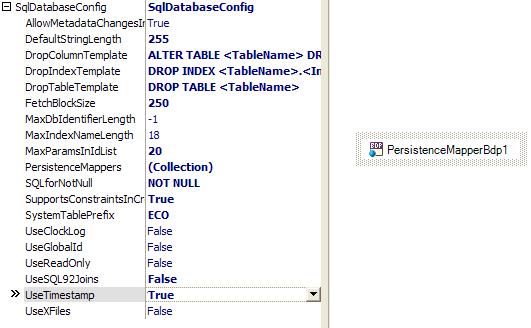
If you set OptimisticLocking to Timestamp on one or more of you classes, you’ll need to go out to your PersistenceMapper component (in your ECOSpace) and change the SqlDatabaseConfig.UseTimestamp property to True (see the picture below if that doesn’t make sense). You’ll also need to invoke the Evolve Database function so that ECO can create you a new table called ECO_TIMESTAMP. This table contains a single field called BOLD_TIME_STAMP, which despite its name, is an Int field (at least in the SQLServer example I’m playing with here).

So, sticking with the same Person object example above, if we have OptimisticLocking set to Timestamp, here’s what happens when Damien tries to persist his Person object:

First, ECO will execute the following SQL:

UPDATE ECO_TIMESTAMP SET BOLD_TIME_STAMP = BOLD_TIME_STAMP + 1

This does two things. It increments the Timestamp field, and also returns the current value. ECO can then check that this value has not changed since this objects’ fields were loaded from the database. If this value is the same, ECO will then execute this SQL to persist the object:

UPDATE Person SET Firstname = ‘Barney’ WHERE BOLD_ID = 3

If it finds the timestamp field has been changed since this object was loaded (ie. the value in the field is greater than the one stored with the object) it will, like the other OptimisticLocking settings, throw a Borland.Eco.Internal.BoldSystem.EBoldOperationFailedForObjectList exception with the message "Optimistic locking failed for 1 objects".

It should be noted that all classes that are set to use Timestamp as their locking type will share the Timestamp field. So if Person and Appointment are both Timestamp-locked classes, and both persist to the same database, saving an Appointment object has the potential to stop someone else saving their Person object. This is neither good nor bad, it’s just how it works. Sometimes, given certain relationships between classes, this may be the exact behaviour you want. If not, use one of the other techniques.

Now, obviously this is a very simplistic example, but hopefully it’s given you a feel for how Optimistic Locking works. The ability to assign different locking settings to different classes opens up quite a bit of flexibility. Looking at how each setting works, you might notice that each gradually increases the potential scope that ECO will check before persisting an object: from nothing, to changed fields of an object, to all fields of an object, and finally, with Timestamp, to potentially other classes. And if you want even more control, in a future article we’ll have a look at the concept of Regions.

If you want to dig deeper, I would recommend you do what I did: Spend a little time in SQL Profiler (or a similar SQL monitoring tool) and play with the various Locking settings and see what SQL is thrown.

Update: Krishnan has some follow up comments, concerns, suggestions, and Jonas responds in turn, along with some corrections for my article above. See what I’ve started?

Technorati Tags: ,