One of the common questions that I’ve been asked when talking about ECO concerns the CoreClasses file, and whether there is any way to split your ECO objects up amongst multiple files, or whether they must all live in this one file. The answer to splitting up your ECO object model is using UML Packages.
I’ll use Delphi for this example, but it should be pretty easy to follow in C#Builder.
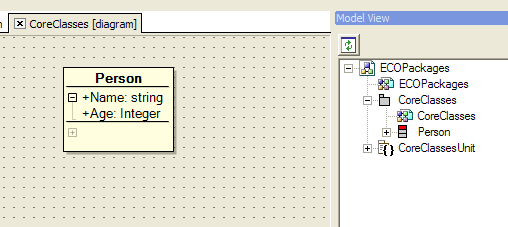
First, I create a new ECO WinForms app, go to the Model View and bring up the CoreClasses diagram. I’ll create a simple Person class, like so:
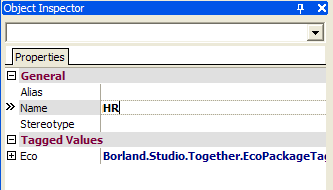
Next, I want to define another class in a seperate package, so I’ll first create a new package. You can go the File | New route, but I find it easier to right-click on the ECO Packages node in the Model View and select Add | ECO Package. This will result in a Package_1 package node being added to the Model View, but lets rename it and save it somewhere sensible. Select the grey Package_1 node and in the Object Inspector set the name property to HR.
You’ll also note in the Project Manager it has created a Package_1Unit file, right-click on this and Save As HRUnit.pas.
So, now we can bring up our HR diagram and create a new class, in this case, Employee.
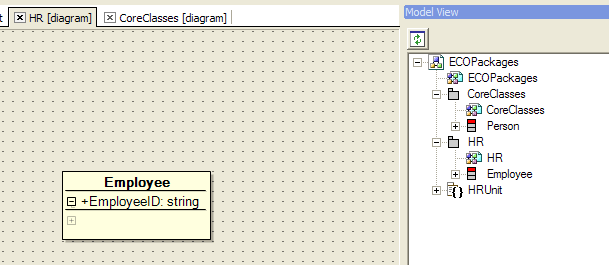
We now have two packages, with one class in each package. Importantly, we also have seperate source files for each package, so we can potentially have two developers working on these files concurrently. However, we probably want to define relationships between the classes in different packages. So to do this, we can make use of Shortcuts.
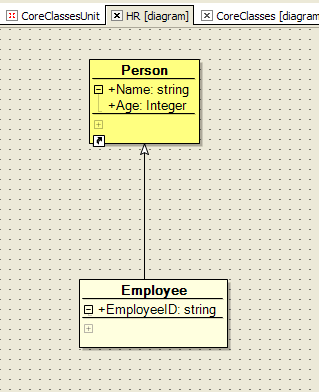
In my case I want my Employee class in my HR package to descend from my Person class in my CoreClasses package. If I bring up my HR diagram, then in my Model View right-click on my Person class I can select Add as Shortcut. This results in the Person class appearing on my HR diagram, but with a Windows-like shortcut icon in the bottom left corner. It hasn’t added the Person class to my HR package, but it has given me an element in my UML designer that I can use to define my inheritence relationship (or association, or whatever it is that you are wanting to do). I’m also trying to get in the habit of changing the BackgroundColor attribute for my Shortcuts in the Object Inspector, just so they really stand out from my "normal" classes. In this case, I’ve made my shortcut yellow, but of course that’s totally up to you.
The other thing to make sure is that in your ECOSpace, you use the Select UML Packages button to include your HR package into your ECOSpace, along with your CoreClasses package
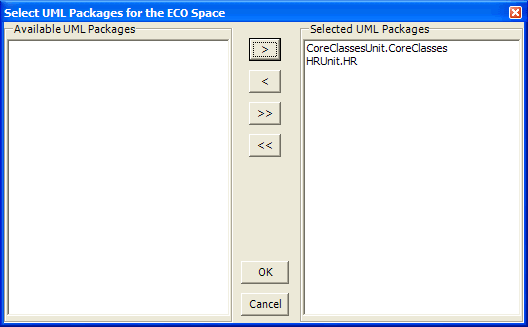
That’s it. You can now go crazy and define as many UML Packages as you like. Of course, it then raises a whole other question of how to break up your design into packages, but that’s not specific to ECO, and not an argument I intend to get into today 🙂
Be the first to leave a comment. Don’t be shy.